

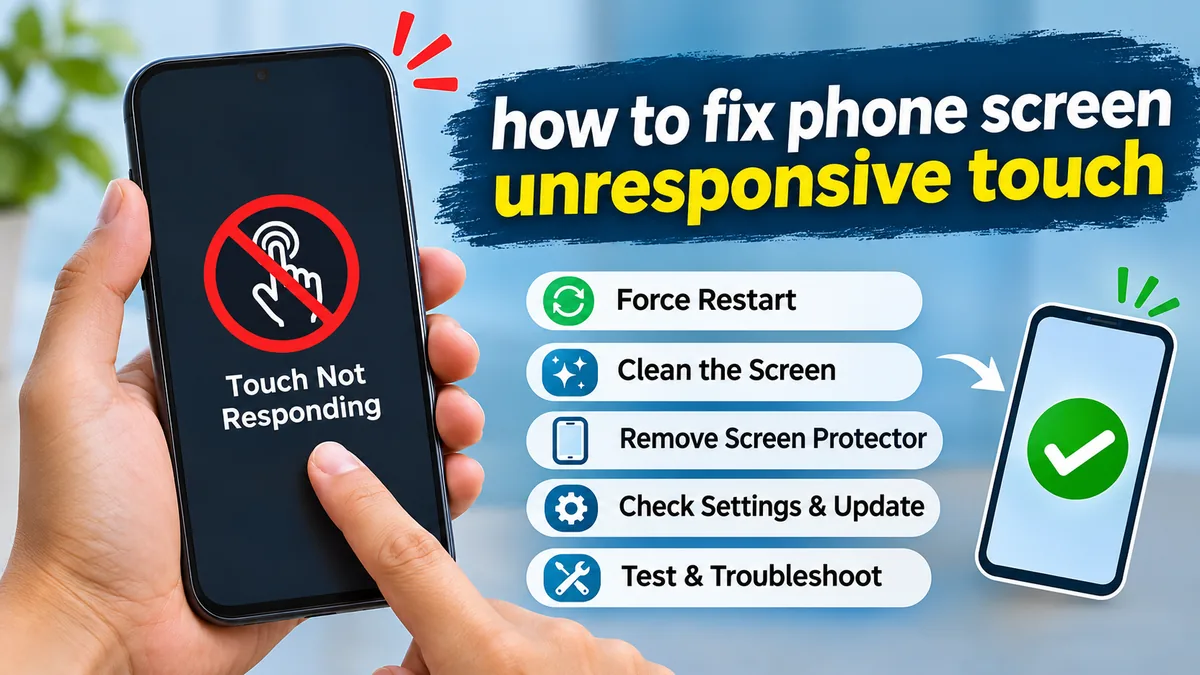
Your phone screen lights up, notifications arrive, and everything looks normal—except tapping or swiping does nothing. Sometimes only one section stops responding. Other times, the entire touchscreen freezes without warning.
If you’re searching for how to fix phone screen unresponsive touch, start by force restarting your phone, cleaning and drying the display, removing the screen protector, and disconnecting charging accessories. If touch still fails, check for problematic apps, software issues, or physical screen damage before considering a factory reset or professional repair.
Most importantly, a touchscreen that stops responding does not automatically mean the display needs replacing. The cause could be a temporary software glitch, a poorly fitted screen protector, moisture, or a damaged touch sensor.
Why Is My Phone Screen Not Responding to Touch?
Modern smartphones generally use capacitive touchscreens. A transparent sensor layer detects changes in an electrical field when a finger approaches or contacts the glass. The touchscreen controller then translates those signals into actions such as tapping, scrolling, and typing.
If something interferes with this process, the display may continue showing images while touch input stops working.
Common causes of an unresponsive touchscreen
| Possible cause | Typical symptoms | What to check |
|---|---|---|
| Temporary software freeze | Entire screen suddenly stops responding | Force restart |
| Dirty or wet screen | Missed taps or ghost touches | Clean and dry display |
| Screen protector interference | Poor response near edges | Remove protector |
| Faulty charger or cable | Touch problems while charging | Disconnect charger |
| Problematic application | Freezing after opening an app | Test Safe Mode on Android |
| Incorrect accessibility settings | Delayed or unusual touch behavior | Review touch settings |
| Physical screen damage | Dead zones, cracks, or intermittent touch | Inspect display |
| Internal hardware failure | Persistent touch failure after troubleshooting | Professional diagnosis |
A useful clue is when the problem began.
If your phone stopped responding immediately after installing an application, software is worth investigating. If it happened after a fall, impact damage becomes more likely. If the screen behaves strangely only while charging, test the charger and cable.
Google, Apple, and Samsung all recommend checking the screen’s condition and accessories before moving to more disruptive troubleshooting. Apple Support+2
how to fix phone screen unresponsive touch: 10 Solutions
Work through these fixes in order. Begin with the methods that do not erase personal data or require opening the device.
1. Force restart your phone
A forced restart can clear a temporary system freeze without deleting your photos, messages, or installed applications.
For most Android phones:
- Press and hold the Power button for approximately 30 seconds, or until the device restarts.
- If that does not work, check your manufacturer’s specific button combination.
- Wait for the phone to finish restarting.
- Test swiping, typing, and opening applications.
For many Samsung Galaxy phones:
- Hold the Side/Power button and Volume Down button together.
- Continue holding for more than seven seconds, until the device restarts.
- Release the buttons and test the touchscreen.
Google documents the extended Power-button method for many Android phones, while Samsung recommends the Side and Volume Down combination for compatible Galaxy devices. Android Help+1
For iPhones with Face ID, iPhone 8, and later compatible models:
- Quickly press and release Volume Up.
- Quickly press and release Volume Down.
- Hold the Side button until the Apple logo appears.
- Release the button and allow the iPhone to restart.
Older iPhone models use different button combinations.
A force restart is especially useful when the phone is frozen but the physical buttons still function.
2. Clean and completely dry the touchscreen
Dust, oil, moisture, and other surface contaminants can interfere with accurate touch detection.
Turn off the device if possible. Disconnect charging accessories, then gently wipe the screen with a clean, soft microfiber cloth.
Make sure your fingers are clean and dry before testing.
Avoid spraying cleaning liquid directly onto the display. Do not use abrasive materials or excessive pressure.
If the phone was exposed to rain or spilled liquid, follow the manufacturer’s liquid-exposure instructions. Avoid charging a wet device, using external heat, or attempting to force moisture out with compressed air.
If liquid may have entered the phone, professional inspection may be necessary even when the exterior looks dry.
3. Remove the screen protector and phone case
Tempered glass and plastic screen protectors can interfere with touchscreen sensitivity, especially when they are damaged, poorly fitted, or lifting around the edges.
Try the following:
- Remove the protective case.
- Check whether the screen protector has bubbles, cracks, or loose edges.
- Remove the protector if necessary.
- Clean the exposed screen.
- Test the touchscreen again.
Pay particular attention to the corners and keyboard area.
Samsung specifically identifies screen protectors, cases, and accessories as possible causes of poor touch response. Samsung Gulf
If the problem disappears after removing the protector, use a properly fitted replacement compatible with your phone.
4. Disconnect the charger and other accessories
Does your phone work normally when unplugged but become difficult to control while charging?
A defective or incompatible charging accessory may contribute to abnormal touch behavior.
Disconnect the charger, USB-C or Lightning cable, and other connected accessories. Then test the screen.
If touch works normally afterward, try a different compatible cable, power adapter, and outlet.
Apple specifically recommends disconnecting wired accessories when diagnosing intermittent or overly sensitive touch response. Apple Support
Do not continue using a charger that overheats, sparks, has exposed wiring, or produces unusual behavior.
5. Allow an overheated phone to cool down
A phone exposed to excessive heat may slow down, temporarily restrict certain functions, or become unstable.
If the device feels unusually hot:
- Disconnect it from charging.
- Stop demanding applications, including games.
- Move it away from direct sunlight.
- Remove the case if appropriate.
- Allow it to return gradually to a normal temperature.
Do not put the phone in a refrigerator or freezer. Rapid temperature changes can create condensation.
Once the device cools, restart it and check the touchscreen.
If the phone becomes extremely hot, swells, or shows signs of battery damage, stop using it and seek professional assistance.
6. Check touchscreen sensitivity and accessibility settings
Some phones include settings that change how taps, gestures, and touch-and-hold actions are recognized.
On supported Samsung Galaxy devices:
- Open Settings.
- Select Display.
- Enable Touch sensitivity if you use a screen protector.
- Test the screen again.
The availability of this setting depends on the device model and software version.
Samsung also recommends reviewing accessibility settings such as touch-and-hold delay, tap duration, repeated-touch filtering, TalkBack, and magnification shortcuts. These can make normal gestures behave differently from what the user expects. Samsung UK
For example, if a single tap highlights an item and a double tap activates it, an accessibility screen reader may be enabled. That is different from a broken touchscreen.
On iPhone, check Settings > Accessibility > Touch > Touch Accommodations if touches appear delayed or are being ignored. Review any settings you previously changed.
Do not assume that increasing sensitivity will repair a completely failed touch sensor. These settings mainly help when touch recognition is inconsistent.
7. Update your phone’s software
Operating-system bugs or app compatibility problems can sometimes cause freezing and poor responsiveness.
For Android:
- Open Settings.
- Find System or Software update.
- Check for available updates.
- Install the appropriate update.
- Restart and test the phone.
For iPhone:
- Open Settings.
- Select General.
- Tap Software Update.
- Install an available compatible iOS update.
Before updating, back up important data where possible and ensure the phone has sufficient battery power.
Samsung includes software updates among its recommended troubleshooting steps for slow or frozen Galaxy touchscreens. Samsung dk
If the screen cannot register any touches, normal on-device updating may not be possible. Do not repeatedly attempt an update if you cannot safely navigate the required prompts.
8. Test Android Safe Mode
If your Android touchscreen started malfunctioning after installing an application, Safe Mode can help determine whether third-party software is involved.
Safe Mode temporarily runs the device with downloaded applications disabled.
On many Android devices, you can access it through the power menu, although the exact method varies by manufacturer.
Once Safe Mode starts:
- Test the affected areas of the screen.
- Open basic system menus.
- Try scrolling and typing.
- Observe whether the problem continues.
If touch works normally in Safe Mode, a recently installed or updated app may be responsible.
Restart normally, then uninstall suspicious applications one at a time and test after each removal.
Google confirms that a touchscreen functioning correctly in Safe Mode points toward a likely application-related problem. Android Help
Safe Mode is primarily an Android troubleshooting feature. iPhones do not offer an equivalent standard user-accessible Safe Mode.
9. Test the screen for dead touch zones
A touchscreen may fail only in a particular area.
For example, the top half might work while the bottom portion ignores taps. Alternatively, one vertical strip might prevent certain keyboard letters from registering.
To investigate:
- Open an application that supports drawing or continuous touch input, if available.
- Slowly drag a finger across different parts of the display.
- Repeat the movement horizontally and vertically.
- Look for consistent interruptions in the touch path.
- Record which areas stop responding.
Google describes a drag test that can help identify a consistent touchscreen failure area on Android. Android Help
On supported Samsung devices, you can also use Samsung Members > Support > Phone diagnostics > Touch screen. Menu names may differ by version.
A repeated failure in exactly the same location, especially after physical impact, suggests possible hardware damage. However, software issues and accessories should still be ruled out before replacing parts.
10. Back up your data and consider a factory reset
A factory reset should be one of the final software troubleshooting options—not the first.
It restores the phone’s software configuration and removes user-installed applications and locally stored personal data.
A reset may help when the touchscreen problem is caused by persistent software corruption or conflicting settings. It will not repair cracked glass, a damaged digitizer, or a faulty display connector.
Before proceeding:
- Back up photos, contacts, documents, and other important data.
- Confirm that you know the device’s Google Account or Apple Account credentials.
- Check that your backup is accessible.
- Follow the manufacturer’s official reset instructions for your exact model.
Google warns that factory resetting Android removes data from the device, including installed applications and their associated data. Android Help
If you cannot back up the phone because the touchscreen is completely unresponsive, consider professional data-recovery or repair options before resetting.
How to Fix an Android Phone Screen That Is Not Responding
Android phones from Samsung, Google Pixel, Xiaomi, Redmi, OnePlus, Oppo, Vivo, Motorola, and other manufacturers share many troubleshooting principles. However, their hardware button combinations, settings menus, and recovery procedures can differ.
When the entire Android touchscreen stops working
If the display shows the lock screen but does not recognize any touch input, try a force restart first.
Next, remove the case, disconnect the charger, and inspect the display for cracks or moisture.
If the touchscreen remains completely unresponsive, some Android phones support a USB On-The-Go (OTG) adapter and a wired mouse. This may allow you to navigate the interface, provided the device supports mouse input and can be unlocked.
A connected mouse can be useful for backing up data before a repair. However, USB input support varies, and a locked or damaged phone may not accept the accessory.
When Android touch stops working after an update
If the problem began immediately after a system update, first restart the device and check whether another software update is available.
If the touchscreen still works intermittently, test Safe Mode to investigate application conflicts.
Avoid downloading unofficial touchscreen calibration tools or installing firmware from unknown websites. These methods can introduce security risks and may not address the underlying problem.
If the screen remains unusable, contact the manufacturer’s support team for model-specific recovery instructions.
How to Fix an iPhone Screen That Is Not Responding
An iPhone touchscreen can become unresponsive because of a temporary iOS freeze, interference from accessories, moisture, or physical damage.
Fix an iPhone that is frozen but still displays an image
Begin with the appropriate force-restart sequence.
For iPhone 8 and later models, including iPhones with Face ID, quickly press Volume Up, quickly press Volume Down, and then hold the Side button until the Apple logo appears.
For an iPhone 7 or 7 Plus, hold the Side button and Volume Down together until the Apple logo appears.
For an iPhone 6s or earlier, hold the Home button and Side or Top button together until the Apple logo appears.
After restarting, test the lock screen, keyboard, and scrolling gestures.
Fix an iPhone with intermittent or ghost touch
If the screen responds without being touched, opens applications unexpectedly, or misses gestures:
- Disconnect charging accessories.
- Clean and dry the screen.
- Remove the screen protector and case.
- Restart the iPhone.
- Check for an available iOS update if navigation is possible.
These initial checks align with Apple’s touchscreen troubleshooting guidance. Apple Support
If the problem continues, especially after a drop or screen replacement, the device may require professional inspection.
What if an iPhone screen does not respond at all?
If the display works but no touch input registers, a forced restart is the safest initial action.
If that fails, you may need computer-assisted troubleshooting through Apple’s supported recovery procedures. Be careful when choosing recovery options because some operations can erase device data.
If your photos and other files have not been backed up, discuss data preservation with an authorized repair provider before restoring the device.
How to Fix a Phone Screen That Is Partially Unresponsive
Partial touchscreen failure is different from a complete system freeze.
A phone may register taps in the center but ignore touches along one edge. The keyboard might work except for several letters, or scrolling might stop at a particular point.
Identify the affected area
Try opening several applications and performing the same gesture in each one.
If a particular area fails consistently across the home screen, keyboard, and multiple applications, a physical touchscreen problem becomes more likely.
If the problem occurs in only one application, troubleshoot that application first. Restart it, check for updates, and consider reinstalling it after protecting any locally stored data.
Can a dead touchscreen area be fixed without replacing the screen?
Sometimes. If the problem is caused by a screen protector, accessibility setting, or software issue, the affected area may begin working again after correcting the cause.
However, a permanently damaged touch sensor generally cannot be restored by changing software settings.
Touchscreen calibration applications cannot repair broken sensor circuits.
For a phone with consistent dead zones after a fall, professional hardware diagnosis is usually more productive than repeated resets.
How to Fix Ghost Touch and Delayed Touch Response
Ghost touch describes situations where the phone registers touches or gestures that the user did not intentionally make.
Common symptoms include applications opening unexpectedly, random scrolling, letters appearing during typing, and menus activating on their own.
Potential causes include moisture, charger interference, display damage, or a malfunctioning touchscreen controller.
Start by disconnecting charging accessories and removing the screen protector. Clean the display, restart the device, and test it without accessories.
If ghost touch occurs only while charging, test a compatible replacement charger and cable.
If it continues while unplugged, especially after impact or liquid exposure, hardware inspection may be needed.
Delayed touch response has a slightly different pattern. The phone eventually recognizes a gesture, but only after a noticeable pause.
Check accessibility touch-delay settings and whether the entire operating system is running slowly. If applications, animations, and menus all lag, the issue may involve broader system performance rather than the touch sensor alone.
Software vs. Hardware Touchscreen Problems
Determining whether a touchscreen problem comes from software or hardware can save time and prevent unnecessary repairs.
| Symptom | More likely explanation | Recommended next step |
|---|---|---|
| Touch works after restarting | Temporary software freeze | Monitor for recurrence |
| Touch fails in one application | App-related issue | Update or troubleshoot app |
| Touch works in Android Safe Mode | Third-party app conflict | Remove recent apps |
| Same screen area always fails | Possible sensor damage | Run diagnostics |
| Touch fails after a drop | Possible hardware damage | Professional inspection |
| Touch behaves strangely while charging | Accessory interference | Test another charger |
| Touch fails after liquid exposure | Possible moisture damage | Stop charging and seek inspection |
| Touch remains dead after software checks | Possible hardware failure | Arrange service |
These patterns provide clues, not definitive diagnoses.
For example, a damaged display assembly can sometimes behave normally for a short period after restarting. Similarly, a software issue can cause repeated failures in a specific interface area.
A technician may need to inspect the display assembly, touchscreen controller, internal connectors, and other components to identify the exact cause.
What to Do When the Screen Is Unresponsive but the Phone Is Still On
A particularly frustrating situation occurs when the phone rings, vibrates, and receives notifications, but the touchscreen does not work.
This indicates that at least some parts of the device remain operational. It does not prove that the screen hardware is healthy.
First, try a force restart.
If the screen remains unresponsive, determine whether your device supports an external mouse, keyboard, or computer-assisted access.
On compatible Android devices, a USB mouse may provide temporary navigation. Some Samsung devices also support external display or computer-connected workflows, depending on the model and configuration.
On iPhone, existing accessibility features may help in certain situations, but they generally need to have been configured beforehand.
Avoid entering repeated incorrect passcodes while attempting to regain access.
If important files are stored only on the device, prioritize preserving them before considering a reset.
When Should You Replace an Unresponsive Phone Screen?
Screen replacement becomes a reasonable option when basic troubleshooting fails and hardware testing indicates a defective display or touch sensor.
Common warning signs include:
- A cracked display with nonworking touch areas.
- Persistent dead zones after impact.
- Ghost touches that continue without accessories.
- Visible display damage alongside touch failure.
- Complete touch failure despite successful software troubleshooting.
Many modern smartphones integrate the touch sensor with the display assembly. As a result, repairing touch functionality may require replacing the complete screen module rather than only the outer glass.
However, a nonresponsive screen can also result from a loose internal connector or damage elsewhere in the phone. Replacing the display without confirming the cause may not solve the problem.
Is screen replacement always necessary?
No. A temporary software problem, faulty charging accessory, or incompatible screen protector can often be resolved without replacing hardware.
Professional repair is more appropriate when the phone has sustained physical damage or remains unresponsive after the relevant troubleshooting steps.
If the device is under warranty, check the manufacturer’s service terms before allowing an unauthorized repair.
How to Prevent Touchscreen Problems in the Future
Not every touchscreen failure is preventable, but several habits can reduce avoidable problems.
Use a properly fitted screen protector and a case that does not press against the display edges. Keep the screen clean and dry, and avoid operating the device with wet hands.
Use compatible charging accessories and replace damaged cables.
Keep the operating system and applications updated through official channels. Avoid installing unknown applications that request unnecessary system-level permissions.
Protect the phone from drops, excessive pressure, extreme temperatures, and liquid exposure.
Regular backups are particularly valuable. They ensure that a touchscreen failure does not automatically become a data-loss emergency.
Final Thoughts on how to fix phone screen unresponsive touch
Learning how to fix phone screen unresponsive touch begins with identifying whether the problem is temporary, software-related, accessory-related, or caused by physical damage.
Start with a force restart, clean and dry the display, remove the screen protector, and disconnect charging accessories. If touch returns, monitor the phone to see whether the problem repeats.
For persistent problems, check software updates, accessibility settings, Android Safe Mode, and touchscreen diagnostics where available.
Avoid factory resetting a phone before protecting important data. If the same screen area consistently fails, or the touchscreen stopped working after a drop or liquid exposure, seek professional diagnosis.
The most effective solution is the one that addresses the actual cause—not necessarily the most expensive repair.
