

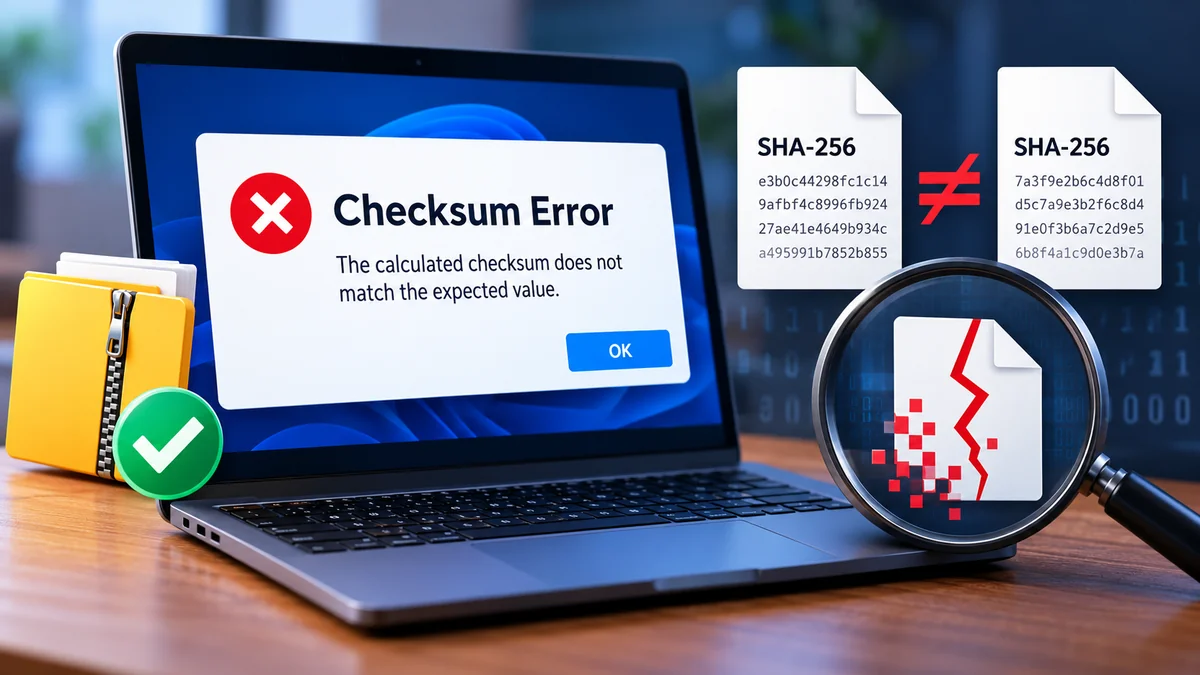
You download a file, try to install software, or start your computer, only to encounter a checksum error. The message may look technical, but it usually points to a straightforward problem: the data being checked does not match the value expected by the system.
A checksum error occurs when a calculated value used to verify data integrity differs from its expected value. This mismatch can indicate corrupted files, incomplete downloads, transmission errors, or unexpected changes to stored information. The solution depends on where the error appears and which checksum verification method is being used.
Understanding how checksums work helps you distinguish a minor download problem from a possible storage, memory, firmware, or security issue.
What Is a Checksum Error and How Does It Work?
A checksum is a value calculated from a collection of data using a mathematical algorithm. It acts as a compact fingerprint that can help detect whether the data has changed.
When data is saved, transmitted, or distributed, a checksum may be generated and stored or published separately. Later, the receiving system calculates another checksum from the available data.
If the values match, the data passes that particular integrity check. If they differ, the system reports a checksum mismatch or checksum verification failure.
How checksum verification works
The basic process involves four steps:
- Checksum generation: An algorithm calculates a checksum from the original data.
- Data storage or transmission: The data is saved, downloaded, or transferred between devices.
- Checksum recalculation: The receiving application calculates a checksum from the data it received.
- Checksum comparison: The new checksum is compared with the expected value.
For example, suppose a software publisher provides a file with a SHA-256 checksum. After downloading the file, you calculate its SHA-256 hash locally.
If both values are identical, the file has passed that integrity comparison. If even one byte changes, the resulting SHA-256 value will almost certainly differ.
A matching checksum is strong evidence of integrity when a suitable algorithm is used, but it does not automatically establish that the file is trustworthy. The expected checksum must also come from a reliable source.
Checksum vs. hash vs. CRC
These terms are related but have different applications.
| Method | Main purpose | Common uses |
|---|---|---|
| Simple checksum | Detect basic data changes | Legacy file formats, embedded systems |
| CRC32 | Detect accidental transmission or storage errors | ZIP files, network protocols |
| MD5 | Legacy integrity comparison | Older download verification systems |
| SHA-256 | Cryptographic integrity checking | Software downloads, disk images, security workflows |
| SHA-512 | Cryptographic integrity checking | Software packages and secure data verification |
A cyclic redundancy check (CRC) is designed to detect accidental errors efficiently. Cryptographic hash functions such as SHA-256 offer stronger resistance to deliberate manipulation and accidental collisions.
MD5 remains useful for some non-adversarial compatibility checks, but it should not be relied upon to prove authenticity against a malicious attacker.
What Causes a Checksum Error?
A checksum mismatch can originate from several different parts of a computer system. Identifying where the error occurs is more useful than repeatedly attempting the same operation.
1. Corrupted or incomplete downloads
One of the most common causes is a file that was not downloaded correctly.
Possible reasons include an interrupted connection, a damaged local cache, an incomplete transfer, or a problem with the downloaded file.
A browser might report a completed download even though the resulting file does not match the publisher’s expected hash.
The simplest solution is often to download a fresh copy from the official source and verify it again.
2. Storage device problems
Hard disk drives (HDDs), solid-state drives (SSDs), USB flash drives, and memory cards can experience data corruption.
Potential causes include:
- Failing storage hardware or unreadable sectors
- Unexpected shutdowns during write operations
- File system corruption
- Faulty USB connections or storage controllers
- Firmware or driver problems
Modern SSDs and HDDs incorporate error-detection and correction mechanisms, but those protections cannot prevent every possible failure.
If checksum errors repeatedly affect unrelated files, storage health deserves investigation.
3. Network transmission errors
Data can become corrupted during network transmission.
Protocols such as TCP and Ethernet use integrity checks to detect certain transmission errors. When a problem is detected, the affected data may be discarded or retransmitted.
However, not every application-level checksum failure means the physical network is defective.
An incorrect file served by a remote server, a damaged cached copy, or a transfer process that modifies content can also produce a mismatch.
4. Faulty RAM or unstable hardware
Random-access memory (RAM) temporarily stores information while applications operate.
Faulty memory, unstable overclocking settings, overheating, or hardware instability can alter data during processing.
Possible warning signs include frequent application crashes, unexplained file corruption, system freezes, and recurring checksum errors across different applications.
A memory diagnostic test can help identify some RAM-related problems, although passing a single test does not rule out every hardware fault.
5. File modification or malware
A checksum changes when the underlying file content changes.
Some modifications are harmless, such as editing a document or updating an application. Others may indicate unauthorized modification or malicious activity.
For example, if a downloaded installer does not match a trusted checksum published by its developer, the file should not be executed until the discrepancy is resolved.
A mismatch alone does not prove that malware is present.
6. Incorrect checksum or algorithm
Sometimes the file itself is correct, but the comparison is wrong.
This can happen when someone uses SHA-256 to compare against an MD5 value, verifies a different software version, or copies the expected checksum incorrectly.
Before diagnosing hardware failure, confirm that the file, algorithm, and reference checksum all correspond to the same release.
Common Types of Checksum Errors
Checksum failures appear in several different environments. Although the messages may sound similar, their causes and remedies can vary considerably.
CMOS checksum error during startup
A CMOS checksum error is commonly associated with BIOS or UEFI firmware settings.
Traditionally, computers used battery-backed CMOS memory to retain system configuration information. Firmware could detect a checksum mismatch when the stored settings were inconsistent or invalid.
On modern systems, firmware settings may be stored in nonvolatile memory rather than traditional CMOS RAM, but similar error messages can still appear.
Common triggers include a depleted RTC/CMOS battery, corrupted firmware settings, an interrupted firmware update, or a configuration reset.
A computer might display messages such as:
- CMOS Checksum Error
- CMOS Checksum Bad
- CMOS Battery Failure
- Defaults Loaded
If the system clock repeatedly resets or BIOS settings disappear after shutdown, a depleted RTC battery becomes a more likely explanation.
File checksum mismatch
A file checksum error occurs when a file’s calculated checksum does not match the expected checksum.
This is common when verifying ISO images, software installers, firmware packages, backups, and archived files.
The mismatch can indicate a damaged download, the wrong file version, or an incorrect reference hash.
ZIP or archive CRC error
Compressed archives commonly use CRC values to detect corruption in extracted data.
Programs such as 7-Zip, WinRAR, and other archive utilities may display a CRC error when extracted content fails verification.
Possible explanations include an incomplete archive, damaged compressed data, an incorrect password for certain encrypted archive formats, or storage corruption.
A CRC failure should not be bypassed when the extracted file’s integrity matters.
Network checksum error
Network checksum errors are associated with data transmitted across a network.
TCP, UDP, IP, and Ethernet use different integrity-checking mechanisms, depending on the protocol and version.
For example, IPv4 includes a header checksum, while TCP and UDP use checksums covering additional protocol information.
Packet-analysis tools such as Wireshark may report checksum errors, but these reports require careful interpretation. Network interface card checksum offloading can make outgoing packets appear to have invalid checksums before the hardware completes the calculation.
Consequently, a Wireshark checksum warning does not always indicate actual packet corruption.
Database and backup checksum errors
Databases and backup applications may store checksums to detect unexpected changes in pages, blocks, or backup content.
A mismatch can indicate damaged storage, an interrupted write, corrupted backup data, or an underlying hardware problem.
Database systems such as Microsoft SQL Server and PostgreSQL support integrity mechanisms, although their checksum behavior and configuration differ.
When database corruption is suspected, preserving the original data and checking backup availability should come before attempting repairs.
How to Fix a Checksum Error Step by Step
The best repair method depends on whether the error involves a downloaded file, operating system, storage device, or firmware.
Start with the least invasive checks before attempting repairs that could affect stored data.
Step 1: Identify where the error occurs
First, record the exact error message and the operation that triggered it.
| Error location | Likely problem | First action |
|---|---|---|
| Software download | Incomplete or modified file | Download again and verify SHA-256 |
| ZIP or RAR archive | Corrupted archive or extraction problem | Test archive integrity |
| Computer startup | Invalid firmware settings or battery issue | Check BIOS/UEFI settings |
| Windows system files | Corrupted driver or system component | Run Windows repair tools |
| Network analysis | Packet corruption or checksum offloading | Examine packet direction |
| External storage | File system or hardware issue | Back up data and check device health |
| Database or backup | Corrupted data page or backup | Preserve data and run integrity checks |
Avoid assuming that every checksum error has the same underlying cause.
Step 2: Download the file again
If the problem occurs while installing software or extracting a recently downloaded archive, obtain a new copy.
Use the software publisher’s official website, confirm that you selected the correct version, and save the file to a reliable local drive.
If the original download was interrupted, a fresh transfer may resolve the problem.
Do not repeatedly execute an installer that fails verification.
Step 3: Verify the file checksum manually
Manual verification helps determine whether the downloaded file matches its expected hash.
On Windows using PowerShell
Open PowerShell and run:
Get-FileHash "C:\Downloads\installer.exe" -Algorithm SHA256Replace the example path with the actual file location.
PowerShell displays a hexadecimal hash value. Compare it with the SHA-256 checksum published by the developer.
Windows also provides the CertUtil utility:
certutil -hashfile "C:\Downloads\installer.exe" SHA256Both commands can calculate a SHA-256 hash for a local file.
On Linux
Open a terminal and run:
sha256sum installer.exeOn macOS
Use:
shasum -a 256 installer.exeIf the generated hash differs from the official reference, check the file version and download source before trying again.
A cryptographic hash match is meaningful only when the expected value is authentic.
Step 4: Repair corrupted Windows system files
If Windows reports a checksum mismatch involving system components, use its built-in repair utilities.
Open Command Prompt as administrator and run:
DISM /Online /Cleanup-Image /RestoreHealthAfter DISM completes, run:
sfc /scannowDISM can repair the Windows component store, while System File Checker examines protected system files and attempts to restore damaged copies.
Microsoft documents checksum-related Windows failures that can involve corrupted drivers, system DLLs, storage problems, or faulty RAM.

Microsoft Learn
These commands are appropriate for supported Windows installations, but they are not universal solutions for archive, firmware, or network checksum errors.
Step 5: Check storage health
Repeated checksum failures involving different files may indicate a storage problem.
Before attempting repairs, back up important files to another device.
On Windows, you can run a file system scan with:
chkdsk C: /scanThis checks the specified NTFS volume for file system issues without immediately requesting the same repair operations as some other CHKDSK modes.
You can also inspect storage health information using tools that read SMART data.
SMART stands for Self-Monitoring, Analysis and Reporting Technology. It provides diagnostic indicators for many HDDs and SSDs.
However, a healthy SMART status does not guarantee that a drive cannot fail.
If a device repeatedly disconnects, becomes unreadable, or produces new corruption, prioritize data recovery and replacement rather than repeatedly running intensive repair operations.
Step 6: Test system memory
If errors occur across multiple applications and storage locations, investigate RAM stability.
Windows includes the Windows Memory Diagnostic utility.
To launch it:
- Press
Windows + R. - Enter
mdsched.exe. - Choose the option to restart and check for memory problems.
- Allow the diagnostic process to complete.
- Review the results after Windows restarts.
Save your work before restarting.
For persistent problems, additional testing with a dedicated memory diagnostic tool may be appropriate.
If the system uses memory overclocking or aggressive XMP/EXPO profiles, testing at supported default settings can help identify instability.
Step 7: Address BIOS or CMOS checksum errors
If a checksum warning appears before the operating system loads, inspect the firmware settings.
Start by checking whether the system date, time, and configuration settings remain correct after shutdown.
If the firmware reports invalid settings, loading optimized defaults may help, but record important settings first.
Changing BIOS or UEFI defaults can affect boot mode, storage controller configuration, Secure Boot, and other options needed by an existing installation.
If the system repeatedly loses its settings, the RTC/CMOS battery may require replacement.
Desktop computers often use a CR2032 coin-cell battery, although battery type and replacement procedures vary by manufacturer.
Firmware updates should be performed only when appropriate for the exact device model and according to the manufacturer’s instructions.
An interrupted firmware update can leave a system unable to boot.
How to Fix a Checksum Error in ZIP, RAR, and ISO Files
Archive and disk-image checksum failures deserve separate attention because the correct solution depends on how the file was created and distributed.
Fixing a ZIP CRC error
A ZIP archive can contain CRC32 values for individual entries.
During extraction, the utility calculates the CRC of the extracted data and compares it with the stored value.
If the values differ, the utility may report a CRC error.
Try testing the archive with 7-Zip:
7z t archive.zipThe command tests archive integrity without extracting the files to their normal destination.
If testing fails, obtain another copy of the archive or restore it from a known-good backup.
Some archive-repair utilities can recover portions of damaged archives, but successful recovery is not guaranteed.
Fixing an RAR checksum error
RAR archives may use integrity checks that differ by archive format and version.
When a RAR file reports a checksum error, check whether all parts of a multipart archive are present.
For example, a split archive may contain several numbered volumes. Missing or incomplete volumes can prevent successful extraction.
Also confirm that the password is correct if the archive is encrypted.
Some RAR archives include recovery records that can assist with repairs, but not every archive contains them.
Fixing an ISO checksum mismatch
ISO files are commonly used for operating system installation media and disk images.
If an ISO checksum differs from the publisher’s official value, avoid using it to create installation media until the discrepancy is understood.
Verify that the reference checksum corresponds to the exact ISO edition, architecture, language, and release.
Two legitimate ISO images can have different checksums even when they install similar software.
Is a Checksum Error Dangerous?
A checksum error is not automatically dangerous, but it should not be ignored.
Its severity depends on the data involved and the reason the verification failed.
A corrupted temporary download is generally less serious than repeated corruption affecting operating system files or critical backups.
When a checksum error is relatively minor
A one-time checksum mismatch may be resolved by downloading a fresh file or correcting an incorrect reference hash.
For example, comparing a newer installer against a checksum from an older release naturally produces different results.
This does not establish that either file is damaged.
When a checksum error may indicate a serious problem
Pay closer attention when checksum errors occur alongside repeated system crashes, disappearing files, unreadable drives, unexpected firmware resets, or failed backup verification.
These symptoms may indicate underlying hardware or storage problems.
Checksum mismatches affecting firmware packages, security-sensitive software, or database backups also deserve careful investigation before the affected data is used.
Can a checksum error indicate a virus?
Yes, unauthorized file modification can cause a checksum mismatch, but a mismatch is not sufficient evidence of malware.
A damaged download, software update, or incorrect file version can produce the same result.
If a security-sensitive file fails verification, obtain a trusted replacement and investigate its source.
Remember that a malicious file and a maliciously supplied checksum can match each other. Authenticity requires a trustworthy reference, such as a verified publisher signature or an independently trusted checksum.
How to Prevent Checksum Errors
Not every checksum failure is preventable. Storage devices can fail, connections can be interrupted, and software defects can occur unexpectedly.
However, several practices reduce the risk of undetected corruption.
Use reliable download sources
Download software, firmware, and operating system images from official publishers or trusted distribution channels.
When a publisher provides a cryptographic hash or digital signature, verify it before installing sensitive software.
Avoid treating an unverified checksum from an unrelated website as authoritative.
Maintain reliable backups
Use multiple backup copies for important information, ideally including one stored separately from the primary computer.
Periodically test whether backups can be restored.
A backup that exists but cannot pass integrity verification may not provide the protection expected.
Keep storage and hardware stable
Maintain adequate cooling, use stable power, and avoid disconnecting storage devices while data is being written.
Investigate unusual disk behavior and repeated system instability promptly.
Where appropriate, an uninterruptible power supply (UPS) can reduce the risk of sudden power loss during critical operations.
Verify files after transfer
When moving important files between devices or storage systems, calculate and compare SHA-256 hashes.
For example, a large video project or backup archive can be verified before the original copy is deleted.
This is particularly useful when moving files across removable drives or unreliable connections.
Understand the limits of checksums
Checksums detect differences; they do not necessarily identify the cause of a problem or repair damaged data.
Some error-correcting systems use additional redundancy to recover information, but a basic checksum comparison alone cannot reconstruct missing or corrupted bytes.
Also, no finite checksum can uniquely represent every possible input. Different inputs can theoretically produce the same checksum, known as a collision.
Strong cryptographic algorithms make accidental collisions extraordinarily unlikely, while weaker algorithms provide more limited guarantees.
What Is a Checksum Error in Networking?
In networking, a checksum error means that a protocol’s integrity check has detected an unexpected value, or that a diagnostic tool has interpreted a checksum field as invalid.
The distinction matters because network capture software may inspect packets before the network hardware has finished preparing them.
TCP and UDP checksum errors
TCP and UDP use checksums to detect certain kinds of corruption in transmitted data.
Their checksum calculations incorporate protocol data and selected network-layer information.
When a receiver detects an invalid checksum, the affected segment or datagram may be discarded.
TCP can recover from certain losses through retransmission. UDP itself does not provide equivalent automatic retransmission.
Why Wireshark may show false checksum errors
Modern network adapters often support checksum offloading.
With this feature, the operating system delegates checksum calculation to the network interface card (NIC).
A packet capture taken before the hardware completes that operation may show an incomplete checksum.
Wireshark documents this behavior and explains that some outgoing checksum warnings do not represent actual network corruption.
Wireshark+1
Before changing network settings, examine whether the warnings affect outgoing packets, incoming packets, or both.
Disabling checksum offloading solely to eliminate cosmetic warnings may reduce performance and is not generally necessary.
Checksum Error vs. Data Corruption: What’s the Difference?
These concepts are closely connected but not identical.
Data corruption means information has been unintentionally altered or damaged.
A checksum error means an integrity comparison has failed.
A checksum error can reveal corruption, but it can also result from comparing the wrong file, using an incorrect expected value, or encountering a diagnostic artifact.
Conversely, corruption can occur without being detected by a particular checksum algorithm.
| Situation | Checksum error? | Data corruption? |
|---|---|---|
| Downloaded file has altered bytes | Usually, if checked against the original | Yes |
| Correct file compared with wrong version’s hash | Yes | Not necessarily |
| File intentionally edited | Yes, against original hash | Not necessarily |
| Wireshark observes incomplete offloaded checksum | May be reported | Not necessarily |
| Two different inputs produce the same checksum | No mismatch detected | Depends on circumstances |
| Backup block damaged and checksum detects it | Yes | Yes |
This distinction helps prevent unnecessary repairs and improves troubleshooting accuracy.
Can a Checksum Error Be Fixed Without Losing Data?
Often, yes. But the possibility of recovery depends on whether the original information remains available.
If the error affects a downloaded file, replacing it with a verified copy is usually straightforward.
If the problem affects a compressed archive, backup, or storage device, recovery may be more complicated.
Some file formats contain recovery information, while certain storage systems maintain redundant copies or error-correcting data.
For example, file systems such as ZFS can use checksums to detect corruption and, when suitable redundancy is available, repair affected data from another valid copy.
However, checksums alone do not provide automatic recovery.
When valuable data is involved, avoid writing new information to a potentially failing drive. Preserve existing copies and consider professional recovery assistance if the data is irreplaceable.
Final Thoughts: what is a checksum error?
A checksum error means that data has failed an integrity comparison. It may be caused by an incomplete download, corrupted archive, storage failure, unstable memory, incorrect reference checksum, or firmware configuration problem.
The most effective approach is to identify where the error occurs, verify the expected checksum, and investigate the relevant component rather than applying unrelated fixes.
For downloaded files, start with a fresh copy and SHA-256 verification. For repeated system or storage errors, protect important data before attempting repairs.
A checksum warning is ultimately a signal to investigate data integrity—not proof that a file is malicious or a device has permanently failed.
